Pages

Wednesday, July 31, 2019

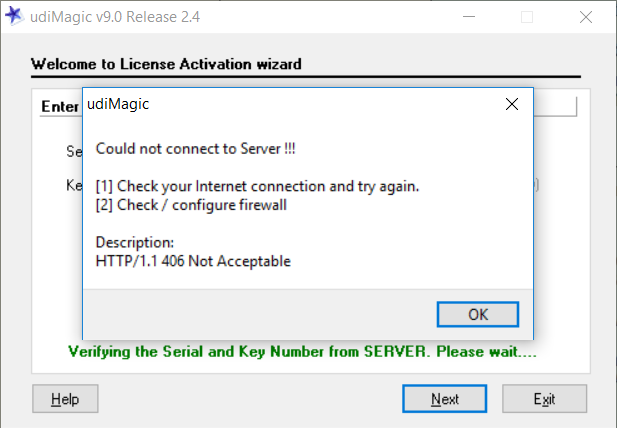
License Activation Error : HTTP 406 Not Acceptable

How to resolve the error HTTP 406 Not Acceptable?

While activating the udiMagic license, if you get the error HTTP 406 Not Acceptable,  please follow the instructions given underneath.

For udiMagic v7.0 and higher versions


1. Download and install the latest release of udiMagic for which you are eligible.
2. Next, activate the udiMagic license using the "Licensing" button in the 2nd screen.

Remarks
To get the download link, visit https://www.rtslink.com/customer/forgot/ and enter your udiMagic Serial Number. The download link will be sent to your email id registered with us.

    For udiMagic v6.0 and lower versions 

    Please write to us by email to resolve the HTTP 406 Not Acceptable error.

    Thursday, July 4, 2019

    Working with Multi-Currency in Tally

    Importing FOREX entries in Tally

    Some excel templates provided with udiMagic software contain a column to specify the CURRENCY. Here's how you can use these templates for importing FOREX as well as BASE currency transactions in Tally ERP.

    1. Keep the CURRENCY column blank, if you want to upload a voucher in base currency.
    2. For FOREX entries, specify the CURRENCY name or symbol in the currency column. Please note that the there must be NO space in the Currency symbol.

    Valid Currency Symbol : USD
    Invalid Currency Symbol : US Dollar

    Important Note
    1. The symbol "US Dollar" has a space and hence is invalid.
    2. It is advised that you manually create the Currencies in Tally ERP before importing the FOREX entries.
    3. The Currency Symbol must be ASCII character(s). Example: Don't use the Indian Rupee symbol which is a Unicode symbol; instead use "INR" or "Rs" as the Currency Symbol.
    4. Tally ERP does NOT allow spaces in the Currency Symbol.

    Friday, May 31, 2019

    Convert from Perpetual to Subscription license

    How to convert udiMagic Perpetual license to Subscription license?

    To convert your udiMagic Perpetual license to Subscription license, follow the underneath steps :

    1. Log in into the Customer dashboard [https://www.rtslink.com/customer/] using your Serial and Key.
    2. Next, select the tab "License Mgmt"
    3. Next, click the "Buy Now" button under the Panel "Conversion from Perpetual to Subscription License"
    4. Upon successful payment, your Perpetual license is converted to Subscription license.

    NOTE
    Subscription licenses are less expensive than Perpetual licenses and are cost-effective option. 

    Friday, May 24, 2019

    Entries not shown in Bank Reconciliation

    Entries missing in Tally Bank Reconciliation

    Problem description

    When we import the Bank payment or receipt entries with transaction-type as "e-Fund transfer" in Tally, these entries are not shown in the Bank Reconciliation statement.

    Solution

    In the transaction type column in the Excel sheet, specify "Same bank transfer" or "Inter bank transfer" instead of "e-Fund transfer" and then retry import the XLS into Tally.

    Thursday, May 16, 2019

    udiMagic v10 Release 1.9

    Excel Template Modifications

    Compound Unit in StockItem Master

    Template : Master-StockitemMaster.xls
    Description : This template now includes new fields/columns for specifying "Compound Unit" details viz "First Unit, Conversion Factor, Second Unit"

    Multi-line Address in Employee Master

    Template : Master-Employee.xls
    Description : This template now includes additional columns to specify the Employee Address.

    Template fixes

    Template : Vouchers-V10-Journal-with-multiple-references.xls
    Description : The "IsCostCentreOn" feature is NOT enabled automatically for the newly created ledgers. This bug has been now rectified.


    Tuesday, May 14, 2019

    Customer dashboard

    The Customer dashboard now includes a new option :

    Renewal
    udiMagic users can now Renew their Subscription based licenses using this option and avail additional benefits.

    Renewal of subscription has to be done on or before the expiry of the existing subscription period.

    Users can login into the Customer dashboard using the underneath link :
    https://www.rtslink.com/customer/

    Friday, April 26, 2019

    3 ways to Import data in Tally

    Different methods to import Excel data in Tally

    There are several ways to import excel data in Tally using udiMagic software. Watch the videos (links given at bottom) to know more.

    1. Copy/paste data in Standard template

    You can put your data in the Standard templates using copy/paste or can manually enter it. However, this may be tedious if the data is voluminous.

    STEPS

    • Copy/paste from your Excel file into the Standard template
    • Import data from Standard template into Tally ERP

    2. Mapping (in Standard Excel template)

    In this case, you once map the columns in the Standard EXCEL template. Next, the data is copied from your Excel sheet to the Standard template with a single click. You can then import data from the Standard template into Tally using udiMagic. 

    STEPS

    • Map the columns in Standard template
    • Transfer data from your Excel file into Standard template with a single click
    • Import data from Standard Excel template into Tally ERP


    3. Mapping (in udiMagic Software)

    In this case, you once map the columns in the udiMagic Sofware itself. You can then import data directly from your Excel sheet into Tally using udiMagic.

    STEPS

    • Map columns in udiMagic software
    • Import data directly from your Excel file into Tally ERP