Posts

Showing posts from 2009

Sales Order Sample Sheet

Here's a sample Excel sheet format for transferring Sales Orders from Excel into Tally . PS: The above sample uses "Macro-file". Please read the instructions given in the PDF file, before importing data into Tally. For other Excel sheet formats, visit http://www.rtslink.com/download-excel-sheets.html

Access Computer by Name

In the UDIMagic " Settings " screen, you can specify the Computer Name instead of the IP -Address . This is generally required when Tally is running on a different machine and the IP-Address is generated dynamically and changes each time you start the Computer. Follow the underneath steps to specify the "ComputerName" instead of the "IP-Address" :- 1) Go to "Control Panel >> System" 2) Click on the tab "Computer-Name" and note down the "FullComputerName". 3) Next, start UDIMagic and in the "Settings" screen, specify the "ComputerName" instead of the IP-Address (the default ip-address is 127.0.0.1) 4) Next, click on the "Save". 5) Next, click on the "Test Connection" button to test-connect to Tally. UDIMagic License Server On the same lines, you can specify the ComputerName instead of the IP-Address for the UDIMagic License Server also.

Unable to change the number of DECIMAL Places in UNIT MASTER

In case, if you ever tried to change the number of DECIMAL places in the UNIT MASTER, (wherein voucher data exists for the same) you may have noticed that the DECIMAL places field appears disabled . Follow the underneath steps to change the DECIMAL places if the field has been disabled :- 1) Create a NEW Company in Tally 2) Next, create the UOM (Unit of Measurement) for which you need to change the DECIMAL Places. Set the Decimal places as required. 3) Close the NEW Company. 4) Open your original Company which contains data. 5) Next, export all Masters (Option : Gateway of Tally >> Display >> List of Accounts >> Alt+E". Next select the option "All Masters" and "XML" format. This will export the Masters data into "MASTER.XML" file 6) Next, export all Vouchers (Option : Gateway of Tally >> Display >> Daybook >> Alt+E". This will export the Vouchers data into "DAYBOOK.XML" file 7) Close the original Comp...

Excel to Tally - Sample Excel Sheet formats

The following sample Excel sheets formats are now available for UDIMagic users :- UPDATED : 2018-02-10 New Templates available at : https://www.rtslink.com/products/udimagic/standard-templates/ *************************************************************************** The templates shown below are now discontinued. Import Masters from Excel into Tally 1) StockItem Master (only Sale Price) 2) StockItem Master (only Purchase Price) 3) StockItem Master (only Sale & Purchase Price) 4) Ledger Master (Party Masters with different parent Groups) 5) Ledger Master (Party Masters with contact details) Import Vouchers from Excel into Tally 1) Sales Vouchers with StockItems (including VAT; Additional VAT; CST; Excise etc) 2) Sales Vouchers without StockItems (including VAT; Additional VAT; CST; Excise etc) 3) Sales Vouchers with StockItems (including Service Tax; Order Number) 4) Purchase Vouchers (including VAT; Additional VAT) 5) Financial Vouchers in Single-line for...

Tally ERP 9 Release 1.51

We have recently noticed some issues in Tally ERP 9 Release 1.51 which probably seems to be a BUG in this Release (i.e. Release 1.51) BUG: When a request is sent to push/pull data, the Tally Software terminates with the following message :- Internal Error: Contact Tally Solutions Software Exception c000005 (Memory Access Voilation) PS: Though it prima-facie appears to be BUG (according to us), it has NOT yet been confirmed by Tally Solutions, Bangalore.

Tally ERP 9 Release 1.5 issues

While importing Masters into Tally ERP 9, we have noticed some issues. The tests that we performed on different versions of Tally are given underneath :- Tally 7.2 Release 3.12 1) Start UDIMagic and import the "Master - StockItem Master Excel sheet" data into Tally. This will import 2 stock-items into Tally. 2) Once again import the same data into Tally. There is no ERROR. As these records already exist in Tally, they are modified /overwritten. Tally 9 Release 2.14 1) Start UDIMagic and import the "Master - StockItem Master Excel sheet" data into Tally. This will import 2 stock-items into Tally. 2) Once again import the same data into Tally. There is no ERROR. As these records already exist in Tally, they are modified /overwritten. Tally ERP 9 Release 1.5 1) Start UDIMagic and import the "Master - StockItem Master Excel sheet" data into Tally. This will import 2 stock-items into Tally. 2) Once again import the same data into Tally. There is an ERROR mes...

Slow uploading of data into Tally ERP 9

Tally ERP 9 Speed Issues In case, if you are using Tally ERP 9 and are importing data into your existing Tally Company which contains hundreds or thousands of Masters (Ledger Masters or StockItem Masters), you may experience very slow speed while processing of Masters. We have already written to Tally Solutions, Bangalore sometime back about this and it has been confirmed to be an issue / problem with Tally ERP 9. You can get more information about this issue (Tally ERP 9 speed issues with SELECT SQL) at http://www.rtslink.com/tally/tally-erp-9.html#speed-issues Solution UDIMagic v3.0 Release 1.97 uses a different technique to process the Masters records. This eliminates the use of SELECT SQL and results in improved performance. If you are using Tally ERP 9 and experiencing slow speeds, please follow these steps :- 1) Upgrade to UDIMagic v3.0 Release 1.97 (or higher) 2) Make the following changes in the UDIMAGIC.INI (configuration file) [UDIMAGIC] ;;Add this line under the UDIMAGIC ...

How to export Party Name's and Addresses from Tally to MS-Excel

Tally to MS-Excel Query "How do I export the Party Names and their addresses from Tally to MS-Excel ?" Ans: You can get the aforesaid details in Tally using UDIMagic Free Edition. Steps :- 1) Download and install UDIMagic Free Edition from this link http://download.cnet.com/UDI-Magic-Free-Edition/3000-2066_4-77717736.html 2) Use the following SELECT statement to retrieve Party Names and addresses. Select $Name,$_Address1,$_Address2,$_Address3,$_Address4,$_Address5, $StateName,$PinCode,$LedgerPhone,$Email,$ClosingBalance From LEDGER where $$IsChildOf:$$GroupSundryDebtors OR Select $Name,$_Address1,$_Address2,$_Address3,$_Address4,$_Address5, $StateName,$PinCode,$LedgerPhone,$Email,$ClosingBalance From LEDGER where $$IsBelongsTo:$$GroupSundryDebtors Remarks:- The $$IsBelongsTo:$$GroupSundryDebtors function is used to retrieve Ledgers which fall directly under the group "Sundry Debtors" or sub-groups created under "Sundry Debtors"
VBA Macro - Speed up

Excel to Tally If you have Excel VBA macro code (using with UDIMagic) that runs slow, the chances are it's caused by Excel having to recalculate at each line of code. The code below shown how we can switch calculation into manual, run some code, then put it back how it was. Sub GoToManual() Dim xlCalc As XlCalculation xlCalc = Application.Calculation Application.Calculation = xlCalculationManual On Error GoTo CalcBack 'YOUR CODE Application.Calculation = xlCalc Exit Sub CalcBack: Application.Calculation = xlCalc End Sub

UDIMagic Free Edition supports Tally ERP 9

UDIMagic Free Edition v1.0 Release 2.4 supports Tally ERP 9 . Download UDIMagic Free Edition from http://www.rtslink.com/free-tally-utilities.html

How to overwrite or SKIP Voucher if it already exists in Tally ?

Excel to Tally UDIMagic v3.0 Release 1.90 provides a new configuration-setting for "Treatment of entries already existing in Tally" . In simple words, you can specify how the existing Vouchers in Tally are handled by UDIMagic . i.e. whether the :- a) Vouchers must be overwritten, if they already exist in Tally Software or; b) Vouchers must be SKIPPED, if they already exist in Tally Software STEPS 1) Open the file UDIMagic.ini in Notepad (configuration file which is there in c:\udi-magic folder) 2) Add the line IgnoreDuplicateVouchers=Yes under section [UDIMAGIC] as shown below :- [UDIMAGIC] ;;Alternative 1 ;;Vouchers will NOT be overwritten if already existing in Tally IgnoreDuplicateVouchers=Yes ;;Alternative 2 ;;Vouchers will be overwritten if already existing in Tally. Un-comment if required ;;IgnoreDuplicateVouchers=No 3) Next, save the file.

Sales Vouchers with Cash, Scheme Discounts

Excel to Tally Sample Excel-sheet format for Sales vouchers containing :- a) Cash discount b) Scheme discount Download the Excel Sheet and XML tags

Journal Vouchers

Excel to Tally Sample Excel-sheet format for Journal (JV) vouchers Download the Excel Sheet and XML tags

Sales vouchers of a FMCG distributor-firm

Excel to Tally Sample Excel-sheet format for Sales vouchers of a FMCG distributor-firm. Download the Excel Sheet and XML tags

Sales and Receipt Vouchers in a single file

Excel to Tally Sample Excel-sheet format for Sales & Receipt vouchers containing :- a) Multiple-VAT Rates (i.e. Sales 4%, Sales 12.5%, Sales Exempt b) CST Sales c) Freight, Postage and other charges d) Receipt Voucher entries (Auto-posting for Cash Sales) Download the Excel Sheet and XML tags

Sales and Receipt Vouchers

Excel to Tally Sample Excel-sheet format for Sales & Receipt vouchers containing :- a) Stock-Items b) Multiple-VAT Rates c) Multiple BYB References Download the Excel Sheet and XML tags

UDI-Magic FAQs

Here are some Frequently asked questions about UDI-Magic .

Tally ERP 9 SPEED Issues

Recently while working on Tally ERP 9 we faced some problems. Tally ERP 9 was very slow in processing SQL-SELECT statements. Click here for more details on the Tally ERP 9 SPEED Tests that we performed.

Learn how to write XML tags

Here are some links for learning how to write XML tags for importing data from Excel into Tally using UDI-Magic Software. 1) UDIMagic XML tags vs Tally XML tags - Understanding the Basics http://www.rtslink.com/udimagic-xml-tags.html 2) My first Tutorial - Step-by-step instructions http://www.rtslink.com/udimagic-tutorials/udimagic-tutorials.html 3) Exercises / Tutorials (It is advised that you start from Exercise 1. Refer the Labels given on the left-hand-side of the blog) http://learn-tally-xml-tags.blogspot.com/

Ledger Master with VAT, Excise Info

Here's a sample Excel sheet that contains Ledger Masters (Supplier and Customers) with VAT, Sales Tax and Excise details. Download the Excel sheet and XML tags .

Updating StockItem Master Names in Tally

UDIMagic v3.0 Release 1.81 supports a new tag named <OLDNAME> The tag <OLDNAME> when used along with the tag <NAME>, allows you to modify NAME's of existing MASTER-records in Tally. Here's a sample Excel sheet which contains StockItem Master-records wherein we have OLD-Names in Column-B and NEW-Names in Column A. The objective is to replace the StockItem Master-records having OLD-Names with the NEW-Names. And here are the XML tags to update / modify the STOCKITEM Master records with the NEW-Names. XML tags extracts:- <!-- Create STOCKITEM Masters --> <MASTER TYPE="STOCKITEM" > <NAME.LIST> <!-- NEW-Name for STOCKITEM --> <NAME COLUMNREFERENCE="A"/> <!-- OLD-Name for STOCKITEM --> <OLDNAME COLUMNREFERENCE="B"/> </NAME.LIST> <!-- PartNumber --> <ADDITIONALNAME COLUMNREFERENCE="C"/> <COSTINGMETHOD>Avg. Cost...

Debugging with UDI-Magic

Before we proceed with the task-on-hand, let's have a look at what way the UDI-Magic software functions. UDI-Magic functionality UDI-Magic is an EDI (Electronic Data interchange) tool that facilitates and involves the following :- 1) E xtract data from a data-source (herein MS-Excel) 2) T ransform the data 3) L oad it into the target (herein the Tally Accounting Software database) Tech-guys may refer this link for more information on ETL (Extract, Load and Transform) Debugging with UDI-Magic "Debugging with UDI-Magic" relates to the 3rd step (i.e. Load) in the Extract, Transform and Load method. At times (generally in case of errors) , we may need to see what is being uploaded into the Tally Software. UDI-Magic allows you to send the data into a file simultaneously as it is being uploaded into Tally. The steps for enabling debugging in UDI-Magic are given below :- Step 1 Open the UDIMagic.ini (configuration file) using Notepad. This file is their in the "c:\udi...

View the UDI-Magic Excel sheets templates in your browser

You can now directly view the Excel-sheet templates (formats) for UDI-Magic Software in your browser without downloading / unzipping the zip-files. Here's a sample Excel-sheet template for Stock-Item-Master with Multiple-Price-Levels . For other Excel-Sheet templates, visit http://www.rtslink.com/download-excel-sheets.html

UDIMagic v3.0 Release 1.78

Image
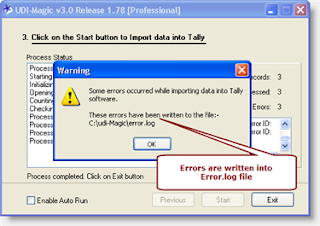
The new Release 1.78 includes improvements in error-reporting as given underneath :- 1) Errors occurred while importing MASTERs and VOUCHERs are shown separately. This enables us to easily identify the cause of the error. 2) Errors are now written in "error.log" apart from being displayed in a "Error-list-box". So if you get any errors while importing data, just go through the "error.log" file in folder "C:\udi-magic" or email the error.log file to support @ rtslink . com (remove spaces) along with your UDIMagic Software Serial Number.

SPEED Test - Tally 9 Release 3 Beta vs Tally 9 Release 2.14

We performed a speed-test by importing 5000 Ledger Masters into Tally Software using the UDI-Magic utility on a Intel Celeron 1.4 Ghz system having 1 GB RAM. And here are the results :- Speed Test - Tally 9 Release 3 Beta vs Tally 9 Release 2.14