Pages

Showing posts with label Tally on Remote Computer. Show all posts

Friday, March 27, 2020

How to import data from excel into Tally on Remote Computer?

Tally on Cloud / Remote System

When Tally ERP is installed on a remote system, you may face certain challenges while importing excel data into Tally. This happens as ONLY the first instance of Tally is assigned the Port Number and other instances of Tally cannot communicate with external applications. To resolve this, you must change the Tally Port number again and again.

Here are some guidelines to import data into Tally installed on Cloud / Remote System:

1. Keep Separate Tally folders for each user

Install Tally in separate folders for each user. Example :
c:\Tally-UserA
c:\Tally-UserB
c:\Tally-UserC

You must also specify the data path for each Tally installation. The data path must be the same if all users want to access the same data.

2. Tally Port Number Setting

Each user must set a unique Port Number using the option "Gateway of Tally || F12 [Advanced Configuration]"

Example :
Port Number : 9001 (for user of c:\Tally-UserA)
Port Number : 9002 (for user of c:\Tally-UserB)
Port Number : 9003 (for user of c:\Tally-UserC)

3. Separate udiMagic folders for each user

Install udiMagic in separate folders for each user. Example :
c:\udiMagic-UserA
c:\udiMagic-UserB
c:\udiMagic-UserC

4. Port Setting in udiMagic

Each user must set the Port Number in udiMagic SETTINGS. The Port Number must be same as assigned to your Tally.

Example :
Port Number : 9001 (for user of c:\Tally-UserA)
Port Number : 9002 (for user of c:\Tally-UserB)
Port Number : 9003 (for user of c:\Tally-UserC)


Remote Excel to Tally - How it Works?
Now, when a userA starts Tally (from his folder c:\Tally-UserA), it runs on Port 9001 and when the user starts udiMagic (from c:\udiMagic-UserA), it connects to Tally on port 9001.

Similary, when userB starts Tally (from c:\Tally-UserB), it runs on port 9002. And when udiMagic is started (from c:\udiMagic-UserB), it connects to Tally on port 9002.

FAQs

How many users can connect and import data into Tally?

Ans:
udiMagic Single User -  One user only
udiMagic Multi User  - Five users only

What will be the upload / import speed ?

Ans:
The upload speed will depend upon :
a. Existing data (Masters and Vouchers) in your Tally Company
b. Number of users uploading data in Tally.
c. System CPU speed and RAM

Monday, November 12, 2007

udi-Magic v2.0 Release 1.04

Release 1.04 supports the following new features:-
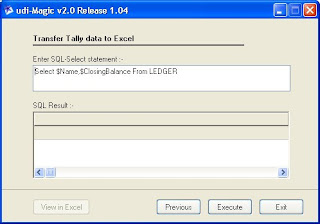
- Transfer of data from Tally to Excel using SQL-SELECT statements
- Push or pull Tally data from a Remote Computer
- Use of XML tags to identify Masters data in MS-Excel

Transfer of data from Tally into Excel
(Pull data from Tally Software into Excel)


You can now easily get Tally data into MS-Excel using simple SQL-SELECT Statements like :-

Select $Name, $ClosingBalance from LEDGER

For more information of using SQL-SELECT statements, refer :-
http://www.rtslink.com

For more samples, visit http://www.rtslink.blogspot.com

You can download the udi-Magic v2.0 Release 1.04 from www.rtslink.com/udimagic.htm

Please see:
Support for writing SQL-SELECT statements to fetch data from Tally Software available to Registered users of udi-Magic.

Push or pull Tally data from a Remote Computer

udi-Magic v2.0 Release 1.04 allows you to access Tally data from a Remote Computer located in a different city or country.

a) You can pull (retrieve) Tally data from a Remote Computer

b) You can push (write) Excel data to Tally wherein the Tally Software is running on a Remote Computer.

All you need to do is specify the IP address of the Remote Computer and some Firewalls settings in the Remote Computer.

Please See:
Support to Access Tally data on Remote Computer is available to Registered users only.

Use of XML tags to identify Masters data in Excel

To begin with, let's have a look at how udi-Magic has evolved till now.

- In udi-Magic v1.0, Column-Headings were used to identify the Excel-sheet data.
- In udi-Magic v2.0 Release 1.03, a new concept to read Excel data using XML tags was introduced. However, this was restricted to Vouchers only.
- In udi-Magic v2.0 Release 1.04, XML tags are used to identify Masters as well as Voucher data in Excel-sheet.